




CAMPUS ACCESS

Available on your devices
Follow the steps below to activate your mobile credential, a digital ID that is a simple and fast way to access buildings and spaces on campus, meal plans, and more right from your iPhone, Apple Watch, or Android device.


Key Features

Enhanced Security
Easy to Access

Reduce Plastic Waste
Activate Your HofPass
Approved photo required for mobile credential eligibility
- All devices must have a passcode enabled
- Eligible Apple Devices (with an Apple ID signed into iCloud)
- iPhone SE Second Generation or later, iPhone 8 or later, and running iOS 16 or later
- Apple Watch Series 1 or later, and running watchOS 6.3 or later
- Eligible Android Devices
- Version 6.0 or later
- All devices must have built-in NFC (Near Field Communication). Most phones made after 2016 have this feature. If you are unsure whether your device has built-in NFC, please contact the device manufacturer or visit their support page below.
- Please complete the first 3 prerequisites for activating your HofPass:
- Download the Atrium Campus Connect app from the Apple App Store or Google Play Store.
- Upload a photo for approval: View instructions.
- You’re likely already enrolled in Duo, but if you aren’t, view instructions.
- For iPhone/Apple Watch Users:
- Open the Atrium Campus Connect app on your iPhone and type your Hofstra Pride email address. Then tap Find Me.
- Tap Next to confirm “Hofstra University” as your organization.
- Log in to the Atrium Campus Connect app with your Portal username and password.
- Go to Settings, located on the bottom right of the app, tap Biometrics, and toggle the button to the right to enable Face ID/Touch ID. This is optional, but highly recommended.
- Go back to Settings and select Credentials. Tap the Add to Apple Wallet button. Follow the on-screen instructions to activate your HofPass. Once it’s activated, the tab will show the status “Active” in green. You can do this for both your iPhone and Apple Watch.
- Navigate to your iPhone’s Settings and/or your Watch’s Settings app, open Wallet & Apple Pay settings, under Other Cards, select your HofPass, and confirm Express Mode is toggled On. This setting should be on by default. Express Mode will allow your HofPass to be used automatically without requiring Face ID, your passcode, or double-tapping the side button of your watch. This may also make your HofPass available even when your device needs to be charged.
- Please note: Users can add the pass on up to two Apple devices (one iPhone and one Apple Watch) that are signed into iCloud with the same Apple ID.
- International Apple Users: If you do not find the Atrium Campus Connect app in the app store on your phone, view instructions to reset your region to the United States. Changing your region may impact other functionality on your phone. Please read the details before proceeding.
- For Android Users:
- Open Settings on your device and search for “NFC” or see the user manual for your device to locate the NFC (Near Field Communication) settings on your phone.
- Enable the NFC feature on your phone.
- Open the Atrium Campus Connect app and type your Hofstra Pride email address. Then tap Find Me.
- Tap Next to confirm “Hofstra University” as your organization.
- Log in to the Atrium Campus Connect app with your Portal username and password.
- Select the “Credentials” option.
- Tap the “Create Mobile Credential” button. Once it’s activated, the tab will show the status “Active” in green.
- International Android Users: If you do not find the Atrium Campus Connect app in the app store on your phone, view instructions to reset your region to the United States. Changing your region may impact other functionality on your phone. Please read the details beforeproceeding.
- You don’t need internet connectivity to use your HofPass.
- For iPhones 6S/6S Plus and later: The express mode is enabled by default. When using HofPass, place the top back portion of the phone near the contactless card reader.
- For iPhones 6/6 Plus: Double click the home button and select the HofPass. Then authenticating with Touch ID and holding the top of the phone near the contactless reader.
- iPhones users: Place the back portion of the phone near the contactless card reader. If you do not have Express Mode turned on, your device will require Face ID or your passcode.
- Apple Watch users: Place the watch face near the contactless reader. If you don’t have Express Mode turned on, you’ll need to double-tap the side button of your watch.
- Android users: Press the power button to wake up the screen and place the back of your phone near the contactless card reader. Please be sure the Atrium Campus Connect app is running in the background.
FAQ
HofPass is your Hofstra mobile credential, powered by Atrium Campus Connect. Atrium is an iOS and Android app that allows you to use your iPhone, Apple Watch, or Android device as your ID card. Anywhere you would normally present or tap your physical ID, you can use your mobile device instead.
- Atrium Campus Connect App. You can download this from the Apple App Store or Google Play Store.
- A government issued photo I.D. (state license, passport, military I.D., etc)
- For Apple:
- iPhone SE Second Generation or later, iPhone 8 or later, and running iOS 16 or later
- Apple Watch Series 1 or later, and running watchOS 6.3 or later
- Apple ID signed into iCloud
- For Android:
- Android 6.0 (Marshmallow) operating system or newer
- Near Field Communication (NFC) wireless technologies. Most devices made after 2016 have this built-in
Follow the Activate your HofPass instructions above.
Contact the ITS Service Desk (ITS) office at 516-463-7777 or email Help@hofstra.edu. If you require in-person support please make an appointment to visit our ITS Walk-in Center. Students can always email with requests for support to Hofpass@hofstra.edu.
Instructions to verify and/or update your Apple Watch can be found at https://support.apple.com/en-us/HT204641
You can activate your mobile credentials on up to two Apple devices (one iPhone and one Apple Watch) or one Android device.
- Information for Apple products can be found at https://support.apple.com/apple-id or https://support.apple.com/icloud
- Information for Android product support can be found at https://support.google.com/android/?hl=en#topic=7313011
- Instructions for Apple products can be found at http://support.apple.com/en-us/102656
- Instructions for Android products can be found at https://support.google.com/android/troubleshooter/2402620?hl=en&ref_topic=7340599
- Apple
- You should use Find My iPhone to suspend or deactivate your Atrium Campus Connect in Apple Wallet. Instructions for Lost/Found Apple devices and Find My iPhone are located at https://support.apple.com/en-us/HT201472
- You should email AccessSecurity@hofstra.edu for assistance in suspending or deactivating your Atrium Campus connect. You will also need to reach out to Help@hofstra.edu to have your account de-registered with the Duo application.
- Apple and Android
- You should email AccessSecurity@hofstra.edu for assistance in suspending or deactivating your Atrium Campus connect. You will also need to reach out to Help@hofstra.edu to have your account de-registered with the Duo application.
If you get a new mobile device, please remove your HofPass from your old device using the instructions below. Then you can follow the instructions on the top of this page to add your HofPass to your new device.
- Apple
- Before discarding or erasing your old mobile device, open the Apple Wallet app, and remove your HofPass. If needed, you can do this from your new Apple device by going to Settings, tapping your Apple ID at the top of the screen, selecting your old device, then scrolling down to the Wallet and Apple Pay section. Tap your HofPass there, then remove it.
- If you run into trouble removing your HofPass from an old device, you can email HofPass@Hofstra.edu or call 516-463-6942 for assistance
- Android
- Please email HofPass@Hofstra.edu or call 516-463-6942 for assistance with removing your HofPass from your old Android device.
- Apple
- If you are using Express Mode, you do not have to do anything. If you are not using Express Mode, you will have to authenticate each time you access your phone or watch. This is a user security preference. Note: Express Mode is turned on by default.
- Android
- On most Android devices, you won’t need to unlock your phone, but your device will need to be awake (screen lit up) to use your HofPass.
Apple
On newer Apple devices, when Express Mode is enabled (enabled by default), your HofPass may be usable for up to five hours after your device no longer has enough power to turn on.
Android
Your device must have battery power to use your HofPass
Your HofPass does not require cellular or wireless signal to work once on your device. If you are having any difficulty using your Atrium Campus Connect to complete a transaction, report any issues to the AccessSecurity@hofstra.edu for further assistance.
There is no cost to use or set up your HofPass on a mobile device.
Yes, an approved photo is required for eligibility.
Your other device will continue to work; however, you should mark the missing device as lost on icloud.com until it is found.
The same way you have always used your plastic card, simply tap the reader with your phone instead of your card.
Email AccessSecurity@hofstra.edu with your name, student ID, and your question and a member of the team will respond as able with support.
Get Support
If you experience any issues accessing buildings or dining on campus, please call Campus Access (516-463-6942) during business hours or Public Safety (516-463-6606) after hours.
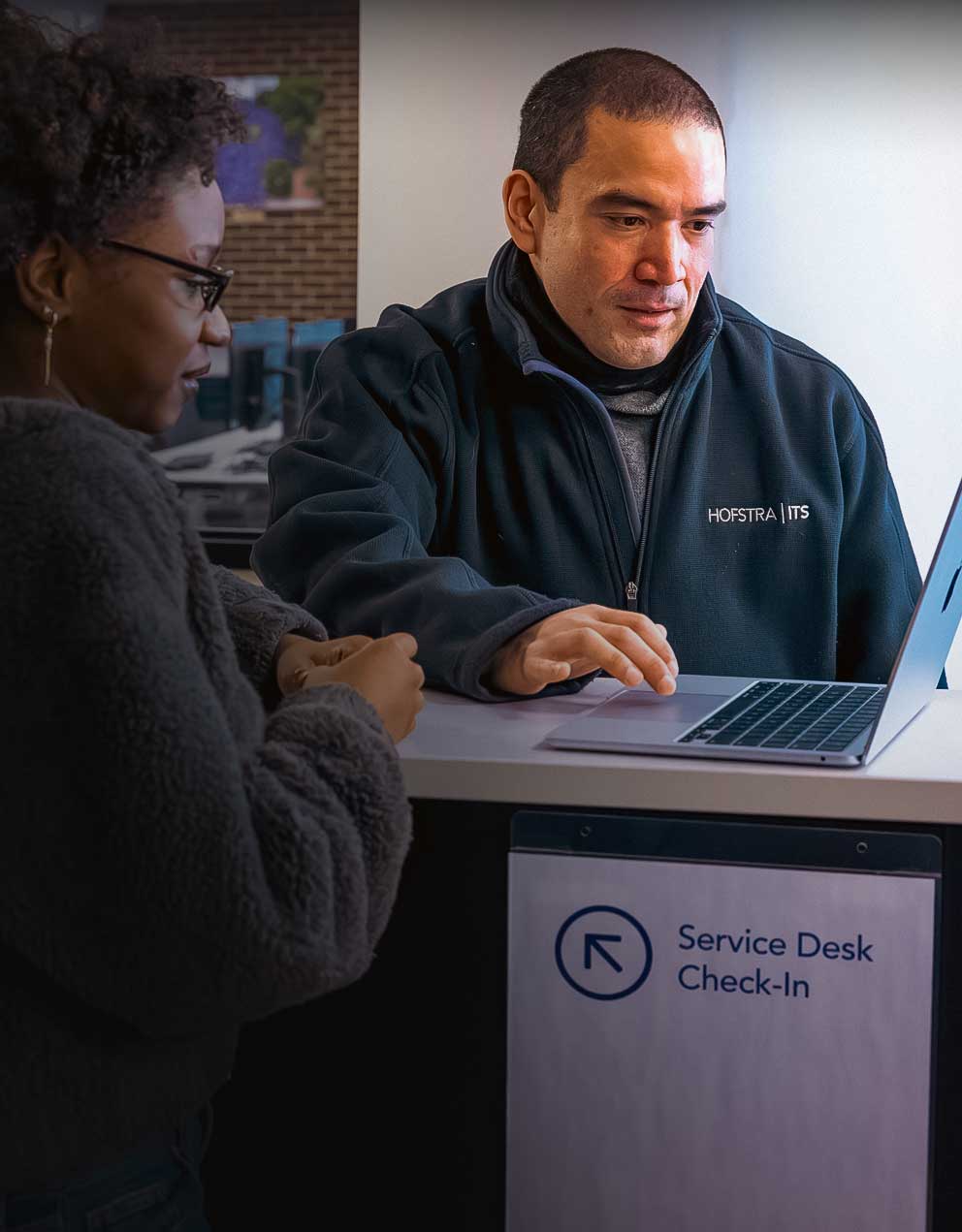
Stop by the Service Desk in Axinn Library or check out the online Service Desk.